Desktop app
The desktop app is a normal window. It uses the same notes, settings, themes, and search as the terminal app. You can use both apps on one workspace.
The desktop app is new. The developer tests it on Linux. The Windows and macOS builds can have rough edges.
To start it, open Kimün from your application menu. To open one note, run kimun-gui path/to/note.md.
The window
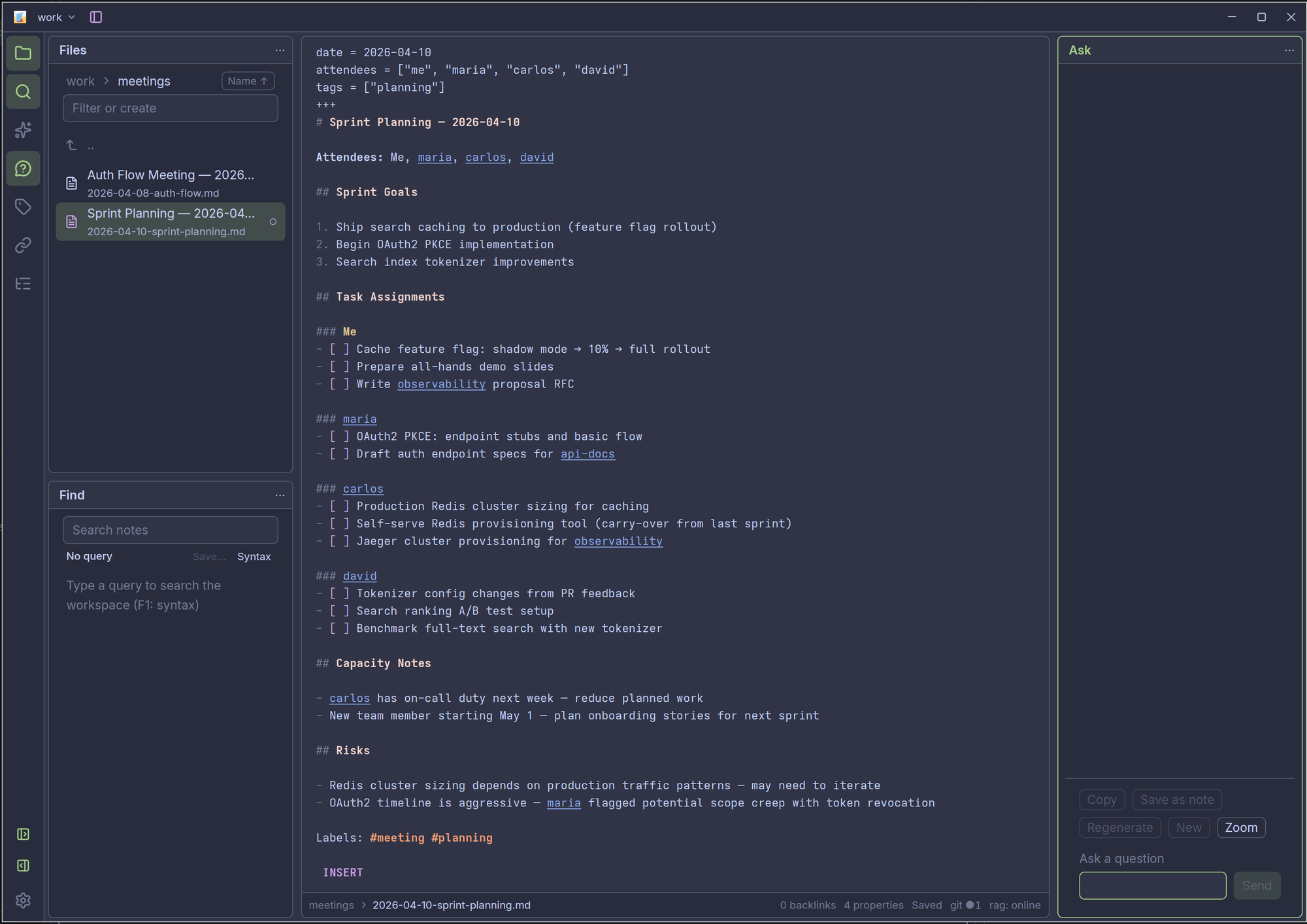
- The rail is a strip at the edge. It lists the views: FILES, FIND, TAGS, LINKS, and OUTLINE. If you connect a Kimün server, it also lists SEM (search by meaning) and ASK. Click a view to open it.
- Views sit in slots next to the editor. Drag a view by its slot header to move it. Drag it to an edge of the window to give it a new slot. Drag a divider to resize a slot.
- The footer shows the note path, the cursor position, the backlink count, and whether the note is saved.
- Press
Ctrl+Shift+Mto zoom the view that has focus. Press it again to go back. In a tab with several panes, zoom shows the current pane only. The focus keys still move to the other panes, and the zoom then shows the pane they reach. - To hide or show the rail, press
Ctrl+Shift+A. To move it to another edge, useRail positionin Preferences.
On macOS, use Cmd in place of Ctrl.
Tabs and panes
A tab holds one or more panes. A pane shows one note. Press Ctrl+T to open a new tab with an empty pane. Open a note in it with Ctrl+O.
- With two tabs or more, a tab strip shows above the editor. Each tab shows the name of its note, and a dot when the tab has unsaved text.
- Click a tab to show it. Press
Ctrl+TabandCtrl+Shift+Tabto go to the next and the previous tab. - Press
Ctrl+W, or click the small cross on a tab, to close the tab. Kimün saves the text first. In vim mode,Ctrl+Wcloses the tab only in normal mode. - Press
Alt+Shift+Rto open an empty pane to the right of the current one. PressAlt+Shift+Dto open one below it. PressAlt+Shift+Wto close the current pane. If you close the last pane of a tab, the tab closes. - With two panes or more in a tab, each pane has a header. It shows the note name, a dot for unsaved text, and a small cross that closes the pane.
- A note is open in one pane only. If you open a note that another pane shows, the keyboard moves to that pane.
- Press
Alt+Shiftand an arrow key to move the current pane. It swaps places with the pane on that side. If no pane is on that side, it moves to that edge of the tab and fills the whole width or height of the tab. A pane that already fills that edge stays. While a pane is zoomed, these keys do nothing and a message tells you to leave zoom first. - On Linux and Windows,
Alt+Shift+LeftandAlt+Shift+Rightdo not select by word in the editor. UseCtrl+Shift+LeftandCtrl+Shift+Right. - To move a pane with the mouse, drag it by its header. Drop it on the edge of another pane to place it on that side. Drop it on the middle of another pane to swap the two. Drop it on a tab to move it into that tab. Drop it on the plus button to move it into a new tab. Press
Escto cancel. - Drag the line between two panes to resize them.
- Kimün remembers the tabs, the panes, and the note in each pane for each workspace. When you start Kimün again, they open as you left them. If a note was deleted or moved outside Kimün, its pane opens empty and Kimün tells you which note is gone.
On macOS, the pane keys use Cmd+Option+Shift in place of Alt+Shift, and the tab keys use Cmd in place of Ctrl, except Ctrl+Tab.
The note menu
The note menu acts on a pane and its note. To open it, right-click in a pane, click the small ... button, or press F2. The button sits in the header of each pane when a tab has two panes or more. In a lone pane, it sits dimmed in the top right corner.
The first items work on the note: Properties, Rename, Move, and Delete. Press P, R, M, or D to pick one. The next items change the layout: Split right, Split down, New tab, Close pane, and Close tab. They show their keys. The menu hides an item that cannot work. For example, an empty pane shows only the layout items. Press Esc, click outside the menu, or press F2 again to close it.
Search
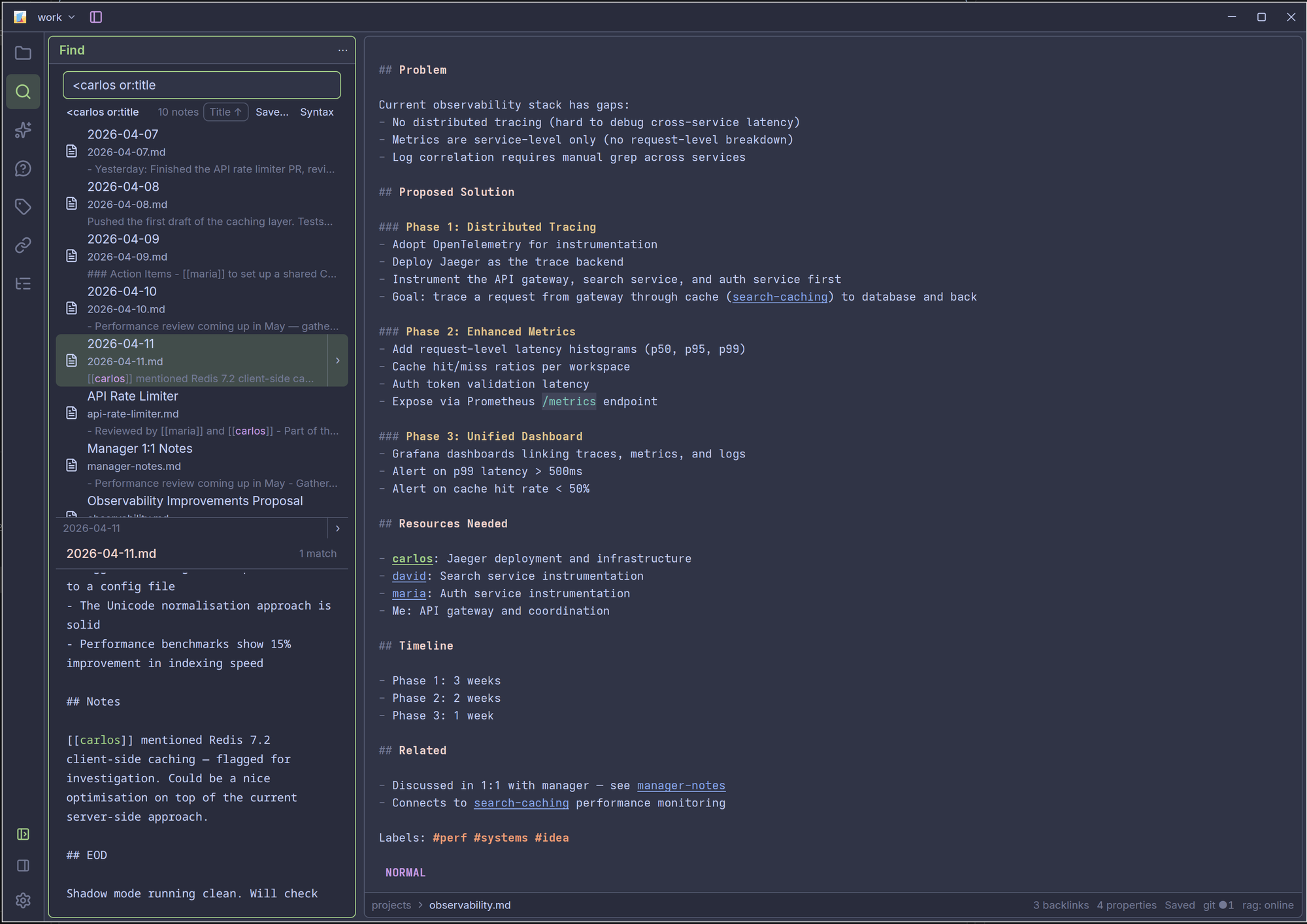
Click FIND in the rail, or press Ctrl+K. Type a query and the results update as you type. Click a result to see more of it. In this example, <carlos or:title finds the notes that link to carlos, sorted by title.
Write a note
- Type
[[to link to another note. Type#to add a tag. PressTaborEnterto accept a suggestion. - Double-click a link to open it.
- Press
Ctrl+Fto find text in the note.
Properties
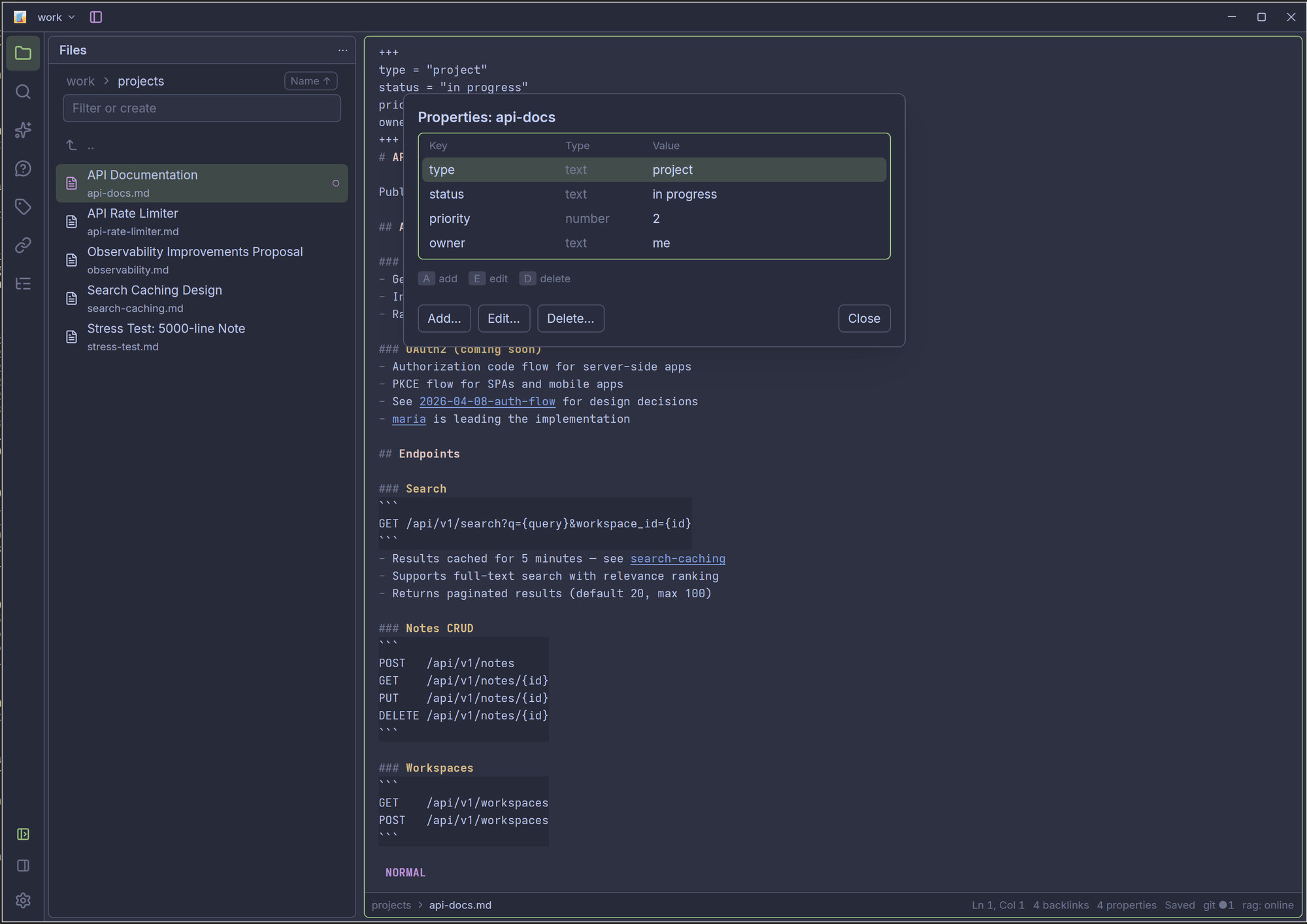
Properties are facts about a note, such as status or due. The footer shows how many a note has. Click it to open the list. Use Add, Edit, and Delete, or press A, E, and D.
Shortcuts
Press F1 to see every shortcut. These are the most useful:
| Shortcut | What it does |
|---|---|
Ctrl+K | Search your notes |
Ctrl+Shift+P | Command palette: find any command |
Ctrl+S | Save |
F5 | Switch workspace |
F4 | Preferences |
Ctrl+Shift+B | Start a command sequence. For example, Ctrl+Shift+B f f opens the note finder |
Ctrl+T / Ctrl+W | New tab / close tab |
Alt+Shift+R / Alt+Shift+D / Alt+Shift+W | Split the pane right / down, close the pane |
Alt+Shift+Left / Right / Up / Down | Move the pane (or the view that has focus) that way |
F2 | Note menu |
Change a shortcut
Add a [gui.keys] section to config.toml. Write the action name, then the new shortcut. An empty list removes a shortcut.
[gui.keys]
SaveNote = "primary+s"
OpenFileBrowser = ["primary+e", "f7"]
primary means Ctrl, or Cmd on macOS. The terminal app does not use this list.
Preferences
Press F4 or Ctrl+,. The list on the left has these sections:
- Workspaces: add, rename, or remove a workspace.
- Appearance: pick the theme.
- Display: the editor font and size, the rail position, and the update check.
- Sorting, Indexing, Editor, and Server: the other settings.
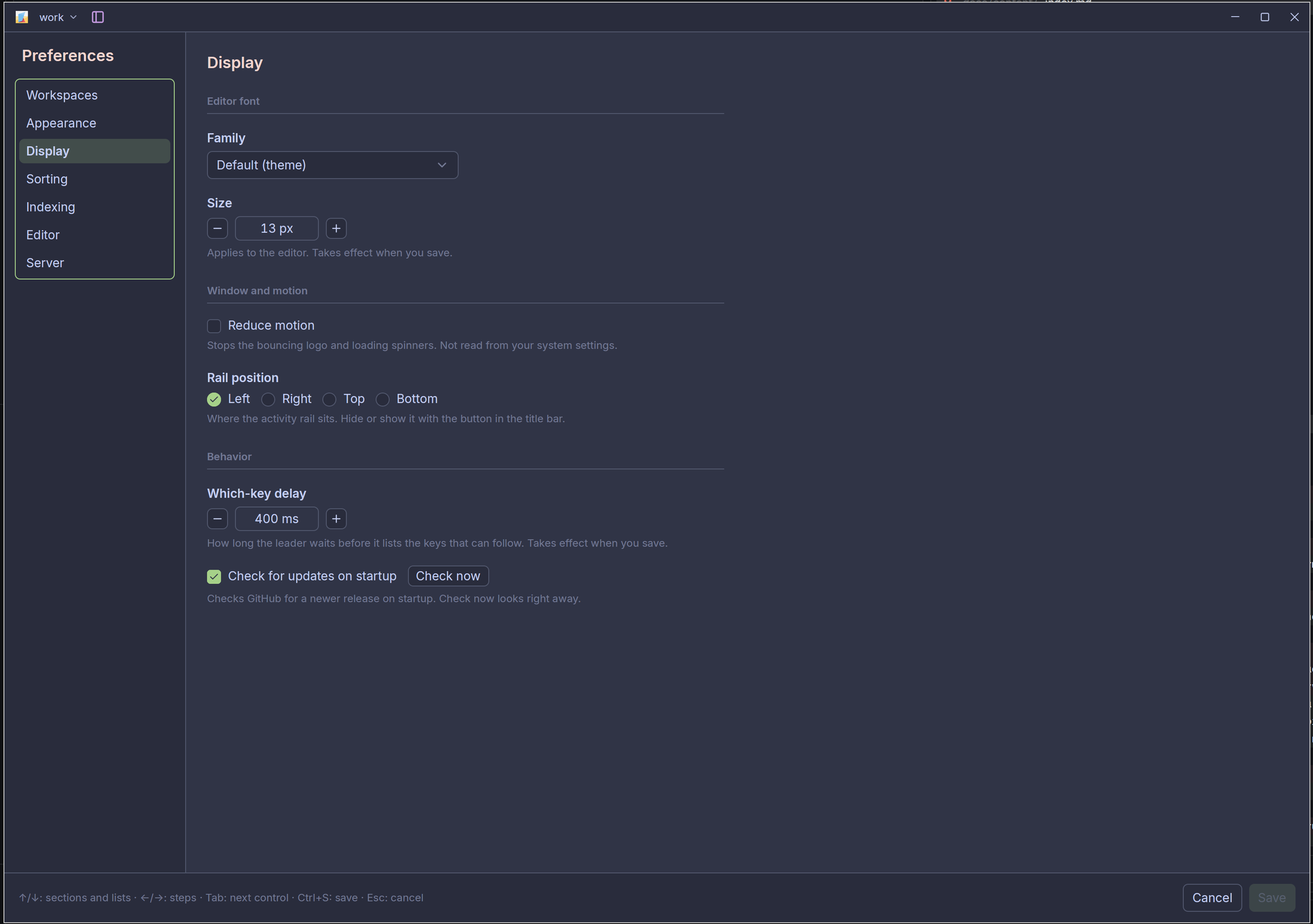
Click Save or press Ctrl+S to keep your changes.
If the title bar looks wrong on your desktop, add window_decorations = "system" to the [gui] section of config.toml. Restart the app to apply it.
Updates
The app checks for a new version when it starts. If you installed with the install script, click Update now in the message. Your open note is saved first, and the app restarts. For other installs, the message shows how to update.
To turn off the check, clear Check for updates on startup in Preferences, in the Display section. Click Check now to look right away.
Not available yet
These features are planned but not built in either app: notes from templates, a graph view, git sync, and export.